Resize One Design to Every Social Media Size
Square, portrait, story and display banners from a single layout - and the honest reason a square design never survives a 728×90 strip on its own.
Quick Answer: Open Campaign Sizes in Backgroundless Studio, pick a template, tick the sizes you need and press Generate batch. Square, portrait and story sizes usually come out ready. Wide banners do not: a square layout has to shrink to fit their height, so Studio flags them and you arrange each banner's layout once. It runs in your browser, free for 5 outputs per batch, or up to 500 with Pro.
"Resize" undersells the problem. Changing a 1080 × 1080 post into a 1080 × 1920 story is mostly adding room. Changing it into a 728 × 90 leaderboard is a different design: the headline, the photo and the price have to sit side by side instead of stacked. Any tool that resizes automatically - Canva's Magic Resize included, which is a paid-plan feature counted against a monthly AI usage limit - is making that call for you. The useful question is how quickly you can see where it went wrong and fix it once.
The sizes, and what each one asks of a layout
| Preset | Pixels | Typical use | Square layout fits? |
|---|---|---|---|
| Square | 1080 × 1080 | Feed posts, marketplace tiles | Yes - it is the original |
| Portrait | 1080 × 1350 | 4:5 feed posts | Yes, with extra room |
| Story | 1080 × 1920 | Stories, Reels and Shorts covers | Yes, mostly empty space |
| Medium rectangle | 300 × 250 | Display ads | Shrinks to 23% |
| Wide banner | 970 × 250 | Display ads, site headers | Shrinks to 23% |
| Leaderboard | 728 × 90 | Display ads | Shrinks to 8% |
The last column is not a guess; it is what Studio reported in the test below. Custom sizes can be added for anything else, such as a marketplace banner or an email header.
Step by step
- Start from a template. Build one in Campaign Sizes, or reuse the one from Design Variations - the template and its CSV carry over between the two tools.
- Tick the sizes. Choose from the presets or add a custom width and height.
- Generate once and look at the flags. Every size that shrank the design below half its size is marked Needs review with the exact percentage and the name of the layout to fix.
- Arrange the flagged sizes. In the template editor, set Layout to that size and move the elements. Only what you change is saved for that size; fonts, colours and CSV bindings still follow the original.
- Generate again. From then on, every new batch - new headlines, new products - comes out right in every size.
What a real 48-output batch looked like
We took a plain promo template (headline, product photo, price) and an 8-row CSV, ticked all six presets, and generated: 48 files in 1.85 seconds in Chrome on a 10-core Mac. Studio marked 24 as Ready (square, portrait, story) and 24 as Needs review - every banner. Here is one row across the first three sizes:
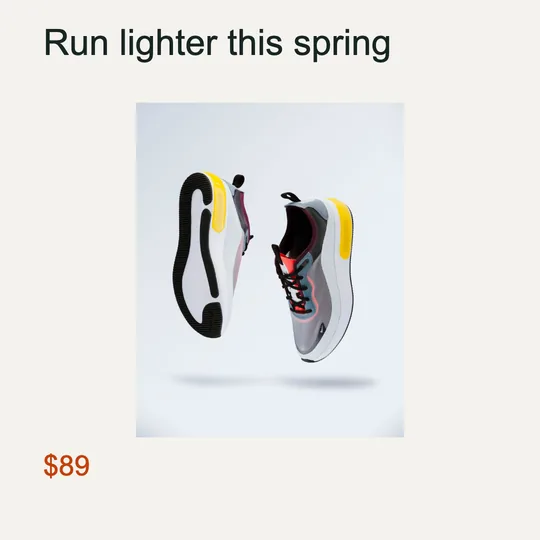
Square
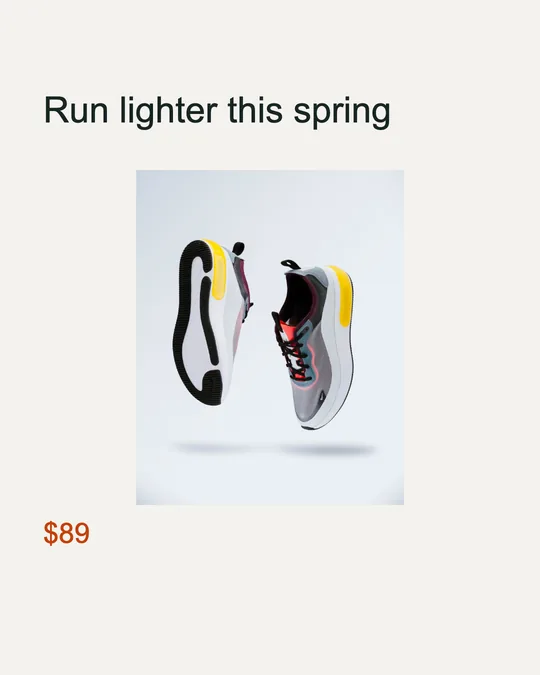
Portrait
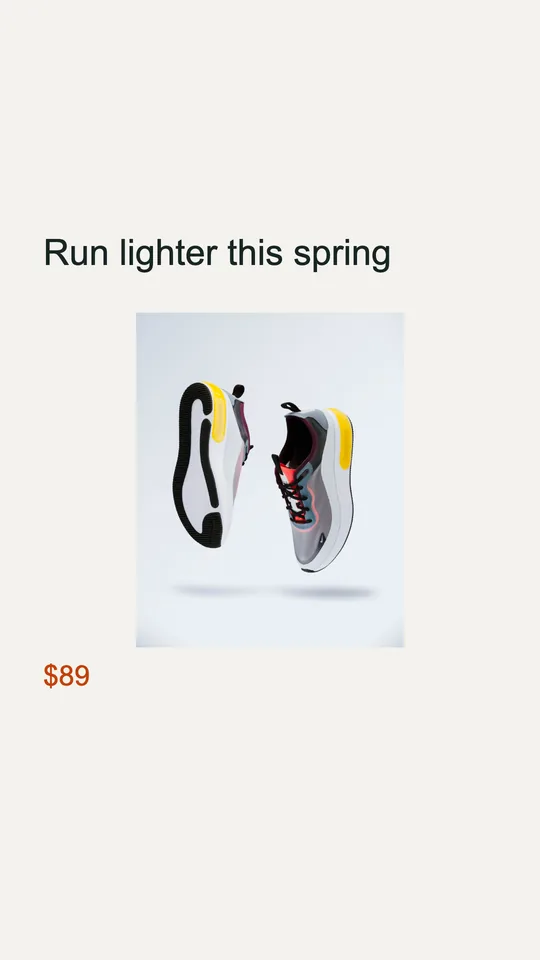
Story
And the leaderboard, before and after giving it its own layout:

Before: the square layout shrunk to 8%, flagged as Needs review

After: one Leaderboard layout, then the whole batch re-run
Arranging that one layout took three elements and a font size. Re-running the batch (1.84 seconds) moved all eight leaderboards to Ready: 32 ready, with the 16 remaining flags on the two banner sizes we had not arranged yet. That is the whole method - the flags tell you exactly which sizes still need a human, and each one needs it once, not once per design.
Resizing photos that have no template
If what you have is a folder of finished images rather than a layout, choose Images only as the template. Each image is fitted to every size by either cover / crop (fills the frame, trims the edges) or contain / pad (keeps everything, adds a background colour). Cropping a square photo into a story is fine for a background shot; it will cut off text that was baked into the image, which is why layered templates resize better than flattened ones.
Free vs Pro, and other options
Free covers 5 outputs per batch with individual downloads and no watermark - enough for one design across five sizes. Pro (a one-time license, see pricing) raises it to 500 per batch, adds a ZIP download and editable PSD export.
- Canva Magic Resize is the quickest choice if you already design in Canva on a paid plan and want a professional template to start from.
- Figma or Photoshop artboards give full control and suit teams with a designer; each size is still arranged by hand.
- Backgroundless Campaign Sizes suits batches: many rows of copy or many products, every size, in one run, with your files kept on your device.
Frequently Asked Questions
How do I resize one design for all social media sizes for free?
Open Campaign Sizes in Backgroundless Studio, build or reuse a template, tick the sizes you need (square 1080×1080, portrait 1080×1350, story 1080×1920, the three common display-ad banners, or custom sizes) and generate. Every design comes out in every size. Free makes 5 outputs per batch with no watermark; Pro makes up to 500 per batch with a ZIP download.
Is Canva Magic Resize free?
No. Canva's help center lists Magic Resize for Pro, Business, Enterprise, Education, Higher education, Nonprofits and Teams plans, and notes that each use counts against the monthly AI usage limit.
Why does my design look tiny in the banner sizes?
Because a square layout scaled into a 728×90 strip has to shrink to fit the height. In our test the design shrank to 8% for the leaderboard and 23% for the 300×250 and 970×250 sizes. Studio flags any size where the design falls below 50% and tells you which layout to arrange. Give that size its own layout once and every future batch uses it.
Can I change the layout for one size without affecting the others?
Yes. Choose the size under Layout in the template editor and move or resize elements there. Only the changes you make are stored for that size; everything else, such as the font, colour or CSV binding, still follows the original layout, so later edits to the original reach every size.
Can I resize a batch of different designs at once?
Yes. Combine Campaign Sizes with a CSV: each row is one design, and each design is rendered in every selected size. Eight rows across six sizes produced 48 files in our test. Flattened images without a template can also be resized, by cropping to fill or padding to fit.
Keep Reading
- Canva Bulk Create Alternative - build the rows before you build the sizes
- How to Make Mockups in Bulk - put the finished designs on products
- YouTube Thumbnail Background Removal - cut-outs for 16:9 layouts
- Add Text Behind a Person in a Photo - a layered effect for a single hero image
Resize your design to every size
Free, no watermark, no upload. Flags the sizes that need a second look.
aspect_ratioOpen Campaign Sizes