How to Put Text Behind a Person in a Photo
Create a cutout, add a short headline, then choose Behind Subject. The person covers the overlapping letters while the rest of the word stays visible.
You need three visible layers: a background, your text, and a person with transparent surroundings. A normal photo placed over the text hides the entire word because its background is still opaque. A cutout lets the letters show around the person. This guide demonstrates the difference and explains the current text-behind-subject controls.
See the same portrait with two layer orders
These two panels reuse our saved portrait cutout. The background, word, font size, and portrait are identical; only the text layer order changes. This is a reproducible browser composition, not a screenshot of a new editor export or a fresh AI-removal benchmark.
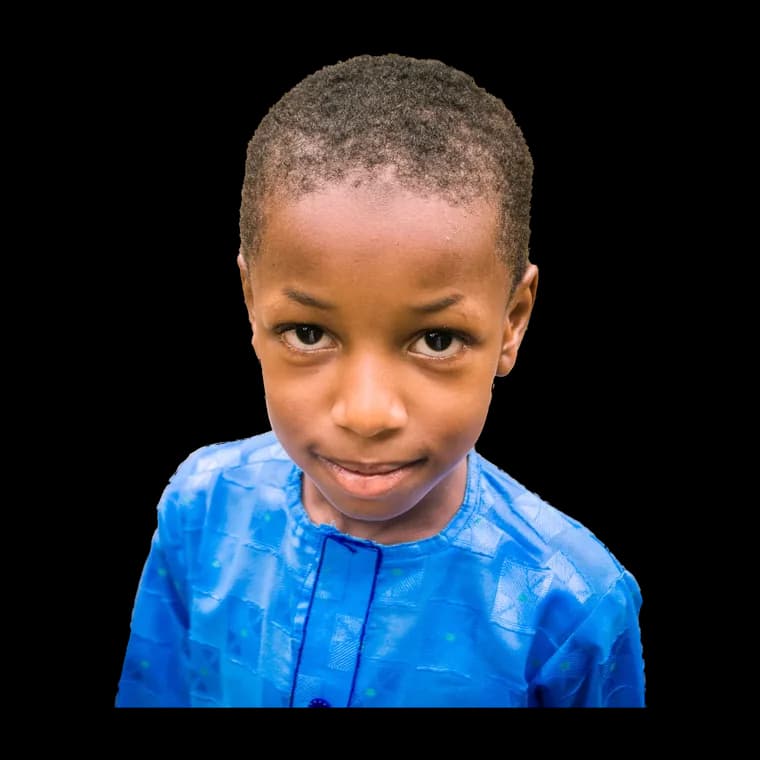
To reproduce the page demonstration, place the saved 760 × 760 portrait over a pale blue square, add HELLO at 25% of the square width in bold sans-serif type, and place the word 30% down from the top. Draw the word before the portrait for the left panel and after it for the right. Font rendering can differ by device; the overlap is the feature being demonstrated.
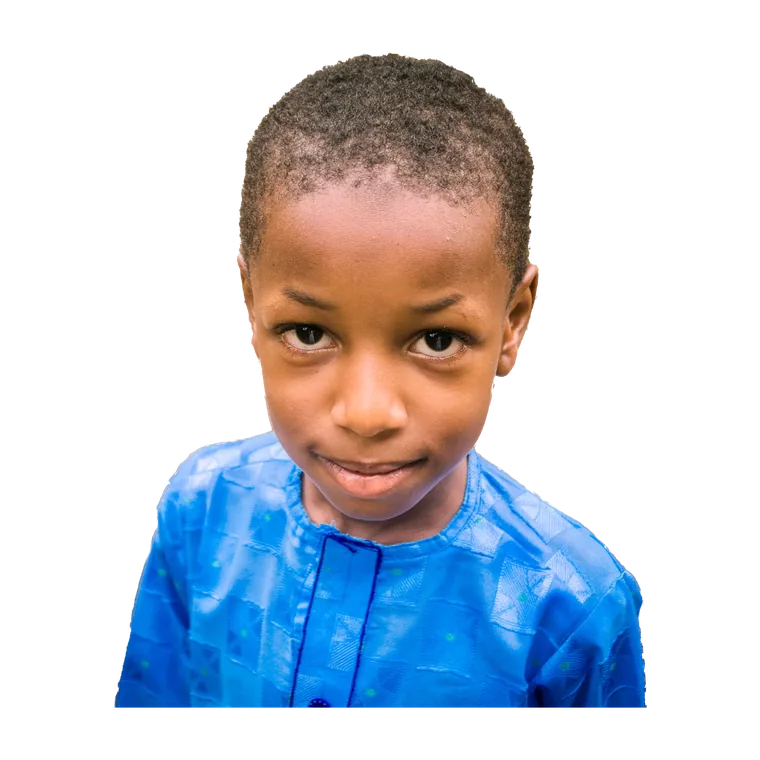
We checked the saved file on October 26: 355,098 pixels are fully transparent, 8,060 are partially transparent, and 214,442 are opaque. Those counts describe this file, not removal accuracy. The downloadable example manifest records its hash and composition settings. MDN documents how overlapping browser layers are ordered; Backgroundless produces the same visual relationship through its canvas drawing order.
Make the effect in Backgroundless
- Upload a photo with room around the subject. Use the main upload area and let background removal finish. A head-and-shoulders portrait with space beside the head is easier to arrange than a face filling the entire frame. Processing time depends on the device and image.
- Inspect the cutout before adding text. Check hair, shoulders, and gaps between the arms and body. If the cutout needs work, use the refinement controls and review the preview before accepting a change. Text makes missing areas and stray background pixels easier to notice.
- Choose the bottom background. Open Change Background and select a solid color, gradient, or Original. Original keeps the scene beneath the text while the separate subject cutout supplies the overlap. Use a simple color first if you are checking the effect.
- Add the word before choosing its position. Open Insert Text and press Add Text. Enter a short word or name. The Text Position controls appear once a text element exists. Select Behind Subject; On Top gives the caption-style result shown in the second panel.
- Move the letters into the overlap. Adjust the text position and size until some of the letters sit behind the head or shoulder. Leave enough of the beginning and end visible to read the word. Change one setting at a time so you can see what caused the improvement.
- Download and inspect the saved image. Check the actual file at its intended display size. The working image may be smaller than the original, especially on mobile. Do not assume that selecting a download preserves the original camera dimensions.
The editor has one shared Text Position setting. Adding a second text element gives you separate styling and coordinates, but does not let you mix behind and on-top placement in the same editable composition. Earlier versions of this guide incorrectly described independent placement; that claim is corrected here.
Keep the word readable
Start with one short word, a plain bold font, full opacity, and no rotation. Place the word across the upper part of the portrait and then move it until the subject hides a few strokes rather than most of the message. These are design starting points, not settings that guarantee a particular result.
For a name or a date that must be understood immediately, choose On Top or move it into clear background space. Keep decorative overlap away from information that matters. For a thumbnail composition, view a small version before deciding that the full-size image is readable. This guide does not claim that the effect improves clicks or engagement.
If you need a plain backdrop, follow the white-background walkthrough. If you want to reuse just the cutout in another design, use the transparent-file guide. PNG and WebP can carry transparency; JPEG cannot, as described in MDN’s image-format guide. A finished composition with a solid background is intentionally opaque.
Fix the common problems
| What you see | What to check |
|---|---|
| The entire word vanishes | Confirm removal completed. Move the word outside the subject silhouette, then bring it back gradually. Check opacity and color. |
| The word covers the face | Choose Behind Subject. If that option is absent, add the first text element. |
| Letters show through the person | Inspect the cutout for transparent holes. Refine the affected region and review the result before accepting. |
| A pale halo surrounds the hair | Check against both light and dark backgrounds. Avoid hiding a poor edge with a large shadow; refine the cutout or try a clearer source photo. |
| The downloaded image looks small | Inspect its pixel dimensions. A mobile working copy can be downscaled; avoid enlarging it beyond what the output can support. |
Questions about the effect
Can I put text behind a person for free?
The basic single-image text effect and individual download are free in Backgroundless. Optional Pro controls are separate; check the live offer if you need them.
Can some text sit behind the person and other text sit on top?
The current editor has one Text Position setting for all text elements. Each element has its own styling and coordinates, but the Behind Subject or On Top choice applies to the whole text group.
Why does my text disappear?
A large subject may cover the whole word. Move the text toward an open part of the image or change its size. Also check that removal has completed, text opacity is visible, and the text color contrasts with the background.
Can I keep the original background?
Choose Original in Change Background after creating the subject cutout. The original photo supplies the bottom layer, and the cutout covers any text that overlaps the person.
The basic effect does not require buying Pro. If an optional control is locked, the current offer explains what is included; pricing is not a prerequisite for following this guide.
Try one photo and a short headline.
Upload a photo to add text