How to Remove the Background from a Logo
Make a transparent logo in your browser, then check the saved file. A reusable sample shows how missing lettering, weak contrast, and a smaller export can affect the result.
Quick answer: Drop the logo into the tool below, then download a PNG. The background is removed on your device, with no watermark and no signup. Before you use it, check the holes inside letters, any thin or pale tagline, and how it looks on a dark background.
Make the background transparent
Upload a photo. We remove the background on your device and open it ready to save as a transparent PNG.
Single-image background removal and PNG download are free. Desktop Office methods below require an existing compatible license. For paid batch packaging, see the current Pro offer; it is not needed for this logo workflow.
First: do you have the original file?
If the logo was designed in Illustrator, Figma, Canva, or similar, the cleanest transparent logo comes from that source, not from cutting a JPG. Ask for the editable vector artwork and export a PNG with the background turned off. Confirm that the designer is supplying editable artwork, not a screenshot saved in another format. Removing a background is the right move when all you have is a flattened JPG or a PNG with a solid background baked in.
Which method should you use?
| Your logo | Use |
|---|---|
| On a photo, texture, or gradient | The browser tool above, Preview, or Paint |
| On one flat color, with pale or thin text | Set Transparent Color in desktop Word; check that the logo does not need that same color |
| Already inside a Word or PowerPoint file | Desktop Office's Remove Background, if you already have a license |
| You have editable vector artwork | Export a transparent PNG from the original instead |
1. In your browser
- Drop the logo (JPG, PNG, or WebP) into the tool at the top of this page.
- The image is processed on your device and the result opens in the editor. Image pixels are not sent to a removal server; downloading the model still needs a connection on first use.
- Check the three trouble spots below. Use Magic Brush to add back anything missing.
- Download as PNG.
2. On a Mac: Preview
- Open the logo in Preview and click the Remove Background button.
- If Preview asks to convert the document to PNG, click Convert, or Cancel and use File > Duplicate first to keep the original.
Source: Apple Preview User Guide
3. On Windows 11: Paint
- Open the logo in Paint and click Remove background in the toolbar.
- Use an up-to-date Windows 11 Paint version. If a solid canvas background remains, open Layers and use Hide background. Save as PNG, then reopen the file and check it on a dark background.
Source: Microsoft, Paint features
Source: Microsoft, Paint background visibility controls
4. In Word or PowerPoint
Logo on one flat color: Set Transparent Color
- Select the logo, then Picture Format > Color > Set Transparent Color.
- Click the background color.
It removes exactly one color, so a pale tagline in a different color survives, which is where automatic removal can struggle (see the saved sample below). It can also remove that same color from the logo itself: white letters are not protected just because they are part of the design. Microsoft notes it works best on simple solid-color pictures, and a color that looks flat may contain subtle variations, especially in a compressed JPG.
Source: Microsoft Support, Make a picture transparent in Word
Anything else: Remove Background
- Select the logo, then Picture Format > Remove Background. Magenta marks what will be removed.
- Fix it with Mark Areas to Keep and Mark Areas to Remove, then click Keep Changes.
- Right-click the logo, choose Save as Picture, and pick PNG.
Microsoft lists supported desktop Office editions on its help page. These instructions do not mean Office is free or that Word for the web supports the same controls. Background removal is unavailable for vector graphics; use the original artwork instead.
Source: Microsoft Support, Remove the background of a picture
A saved logo example: transparency is not the same as a clean cutout
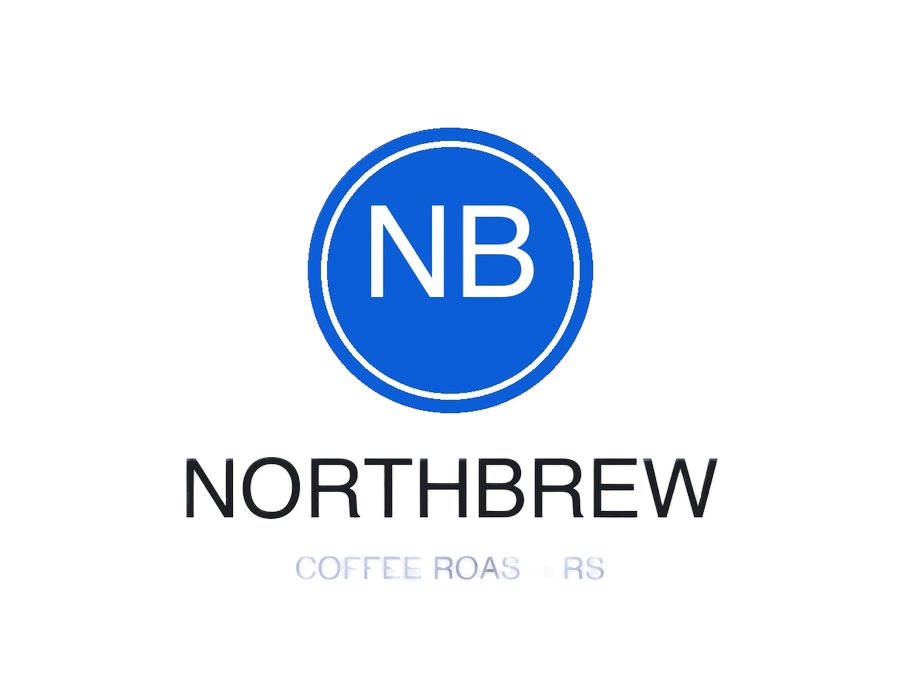
This is the existing NORTHBREW illustration shipped with this guide. We inspected its saved PNG on October 19, 2026 and display the same file against dark and light backgrounds. This is a reproducible file check, not a fresh model benchmark or a prediction of what the current tool will produce on your device.
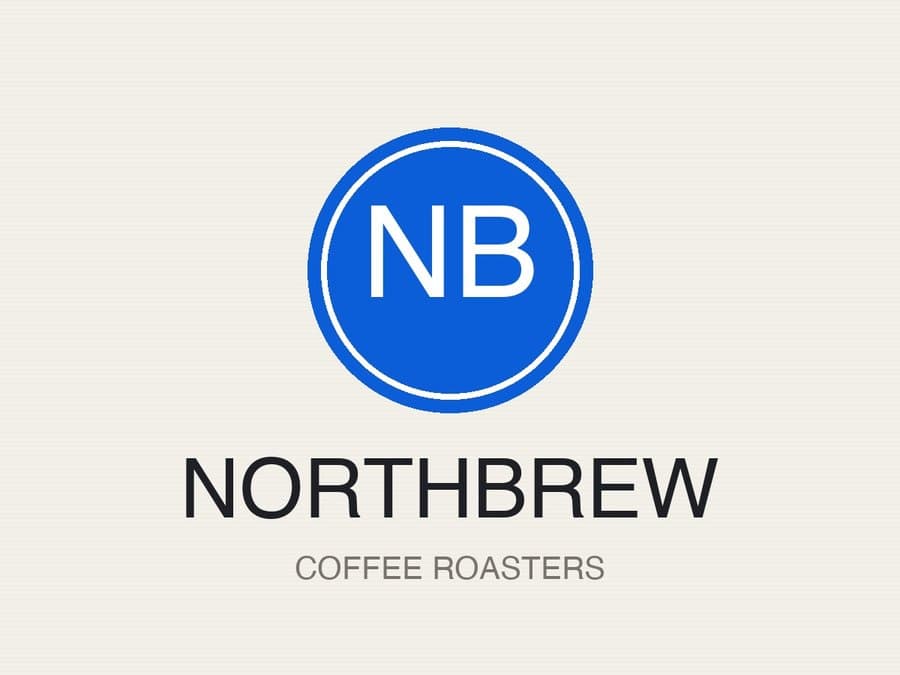
Original JPG

Transparent PNG on dark
Same PNG on white
What that shows, and what to do about it:
- Inspect solid shapes and letter holes separately. Check the badge outline and spaces inside the wordmark at full size. A transparent outer border does not prove that every interior hole is correct.
- Pale, thin text is the weak spot. The saved sample has gaps in the light gray tagline. Try restoring missing parts with Magic Brush and compare with the source. For a flat-color original, test Set Transparent Color, checking every part that shares the removed color.
- A dark logo on a dark background disappears. That is the logo's color, not a cutout fault: transparency cannot make a black wordmark readable on black. Keep a light version of the logo for dark sites and slides.
Repeat the saved-file check
Download the original logo JPG and saved logo PNG. Both are 900 × 675 pixels. The PNG has 607,500 pixels: 521,879 fully transparent, 15,034 partly transparent, and 70,587 opaque. These measured counts describe this file only. Partly transparent pixels can be normal at a smooth edge or a sign of missing artwork; the count alone cannot decide which.
- Open the saved PNG at its actual size. Compare the tagline with the JPG letter by letter.
- Place that same PNG over white and dark gray. The panels above demonstrate the contrast change without changing the image.
- Check the width and height in your image viewer. For a phone export, compare with the original instead of assuming they match.
- Insert the file into your intended slide or website and inspect it again at the size people will see.
To reproduce the pixel counts, download the read-only alpha inspector, install Pillow, and run python inspect-alpha.py 03-logo-cutout.png. The dated measurement manifest records dimensions, byte sizes, and SHA-256 hashes so you can identify the exact files. For an opaque PNG or a checkerboard baked into an image, follow the transparent-file verification guide.
On a phone: check the exported dimensions
Backgroundless uses a smaller working copy on mobile devices to reduce memory demand. A recovery attempt after a crash can use a smaller copy again. The file can still be a transparent, lossless PNG while containing fewer pixels than the upload. Desktop processing keeps source dimensions when memory allows; it is not a guarantee for every file.
For example, a 900 × 675 logo displayed at 300 × 225 uses three source pixels per displayed pixel along each edge. Displaying that same raster at 1,800 × 1,350 doubles each dimension without creating new letter detail. This is dimension arithmetic, not a print-quality threshold. Inspect thin text at the final size; use the vector original when you need artwork that scales beyond the available raster detail.
Source: MDN image format guide: PNG, JPEG, WebP, and SVG
The three checks before you use it
- Holes inside letters. Zoom in on A, B, D, O, P, R, and Q. Leftover background inside them shows up as small boxes on a colored page.
- Thin and pale parts. Taglines, fine serifs, outlines, and small trademark symbols are the first to fade or vanish. Compare against the original letter by letter.
- A dark background. Place the PNG on a dark color. A pale outline around the edges means some of the old background is still blended in; a vanishing logo means you need a light version.
Saving and using the transparent logo
- Format: PNG, or WebP for websites. Both keep transparency. JPG does not.
- Size: keep the largest version as your master and resize copies down. Enlarging a small logo does not add detail.
- Print and merch: printers often prefer vector files. A transparent PNG works for many print-on-demand services if it has enough pixels; see the T-shirt design guide.
- Documents and email: insert the PNG file directly. Pasting through other apps can flatten it.
Frequently asked questions
How do I remove the background from a logo for free?
Drop the logo into the tool on this page. The background is removed on your device and you download a transparent PNG, with no watermark and no signup. Preview on a Mac and current Paint on Windows 11 offer other options. Desktop Word or PowerPoint can help if you already have a license.
How do I remove a white background from a logo?
Try the browser tool and review the result. For a flat-color background, desktop Word has Set Transparent Color. It can also remove that color from inside the logo; check white lettering as well as pale edge pixels before saving.
Why does my transparent logo show a white box?
A white box can be an opaque background stored in the file or a preview behind a transparent image. PNG and WebP support transparency, but their file extensions do not prove it is present. Check the downloaded file on a different background; JPEG cannot preserve alpha transparency.
Can I get an SVG or vector logo this way?
No. This workflow produces a raster PNG, not editable vector paths. Ask the designer for the original vector artwork. Ask for editable artwork rather than a screenshot saved in another format.
Will removing the background lower the logo quality?
Background removal can erase fine lettering or leave edge pixels. PNG is lossless, but that does not undo editing or resizing. Backgroundless adapts mobile working dimensions to the device, so the download may be smaller than the source. Check its actual width and height before using it.