White Background Product Photos in a Batch: a Real 6-Product Test
Six ordinary product photos, one pass, no hand edits. Half came out ready to list. The other half show exactly what to fix before you shoot the next forty.
Quick answer: drop your product photos into the white background maker, one or up to 40 at a time, and download each JPG. Background pixels come out as pure #FFFFFF. With Pro, Amazon main image gives a 2000 × 2000 square with the product at about 85% of the frame. Then check three things the tool cannot know: loose props touching the product, a product cut off by the original photo, and other items standing behind it.
A white background is the listing default for a reason. Amazon asks for a pure-white MAIN image, eBay recommends one, and a grid of products on the same white looks like a catalogue instead of a camera roll. The single-photo version of the job is easy. The real work starts when you bring the whole range, so we tested a batch.
What we ran
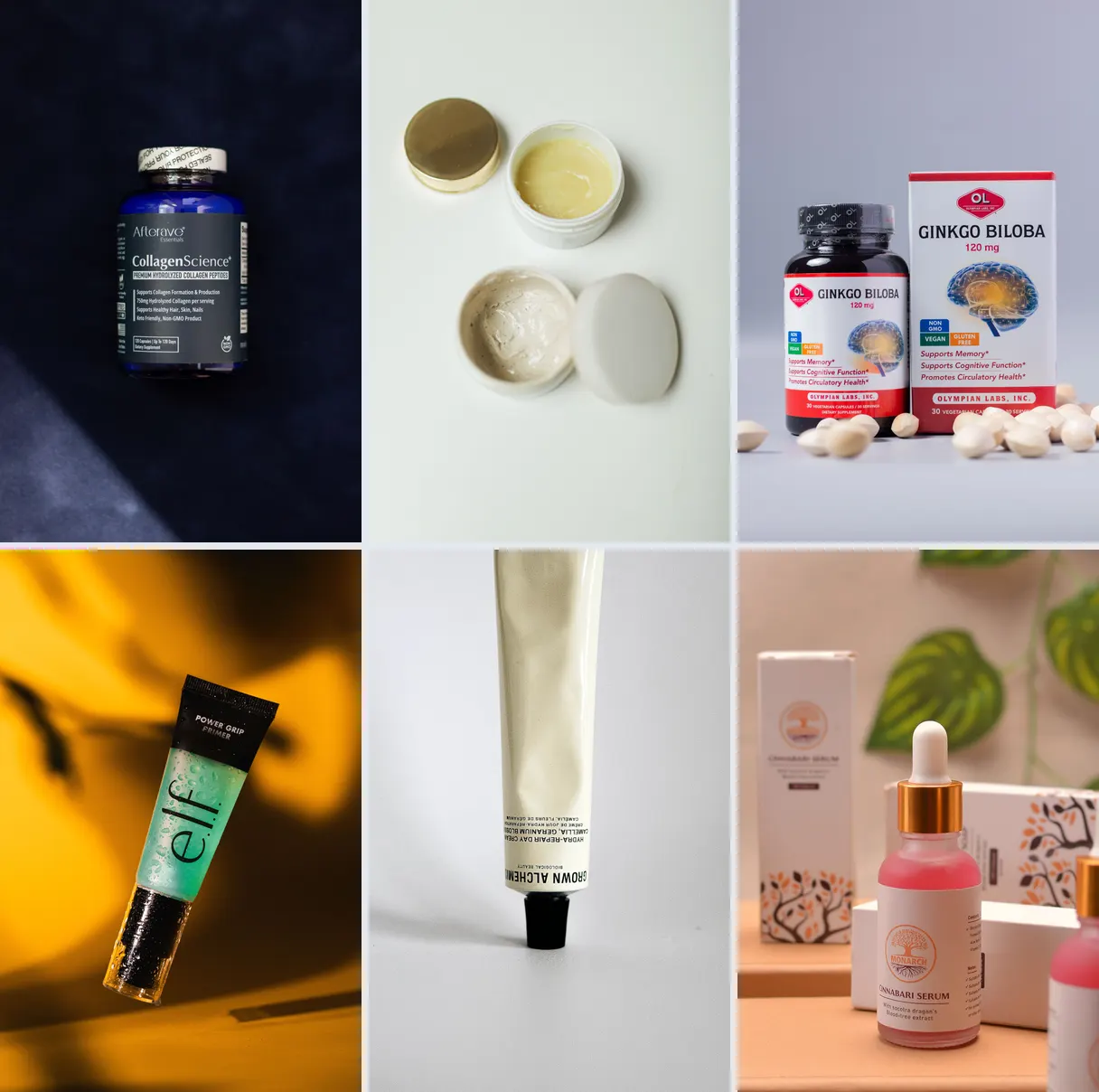
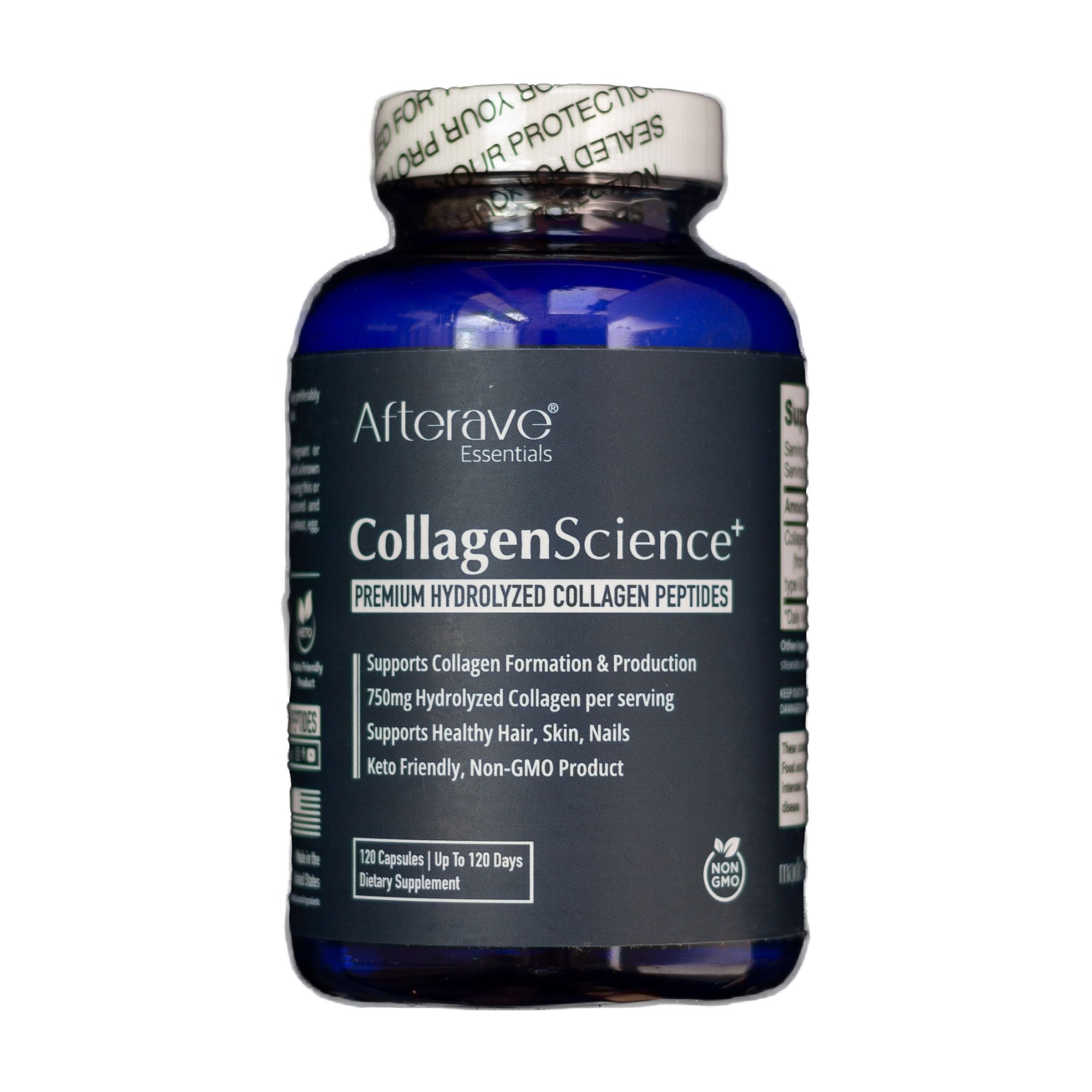
Six product photos from Pexels, chosen to be typical rather than easy: a dark bottle on a dark backdrop, pale jars on a pale table, a bottle and box with loose capsules in front, a tube on a strongly coloured backdrop with a hard shadow, a tube that runs off the top of the frame, and a serum bottle with its boxes behind it. The originals are 2,501 to 4,000 pixels wide.
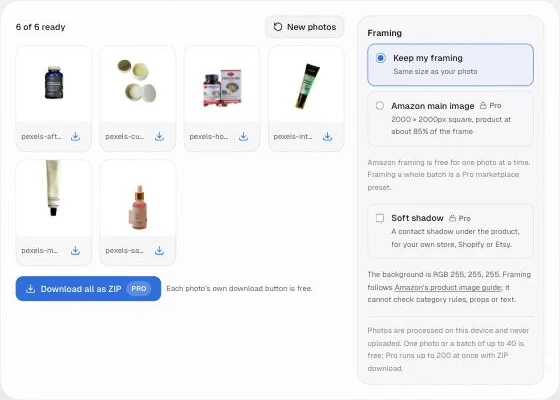
- We dropped all six into the white background maker in Chrome on a Mac, with the default quality setting and Keep my framing.
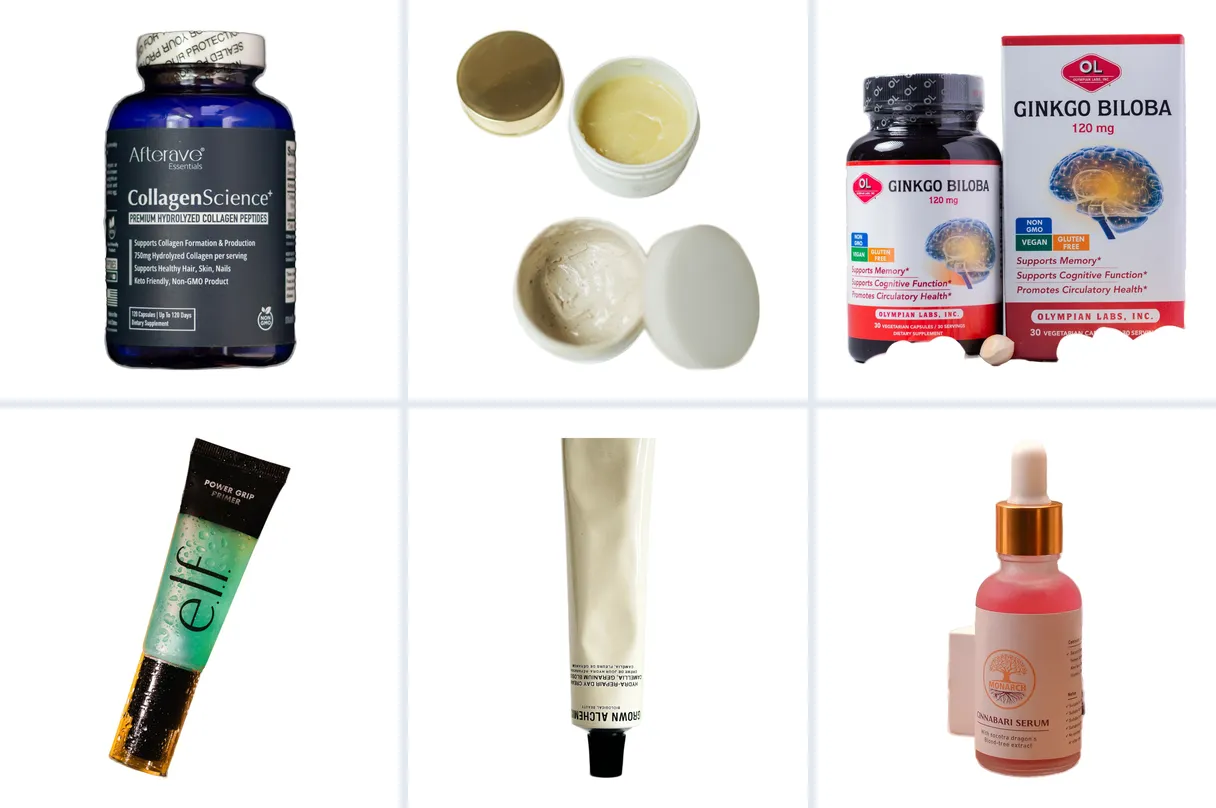
- We downloaded each result, then switched the framing to Amazon main image and downloaded again. Amazon framing is a Pro option, so this step ran on a Pro test setup; the white-background files from the first step are what the free tier produces.
- We measured every saved file: dimensions, the four corner pixels, the share of the frame that is exactly RGB 255, 255, 255, and how much of the frame the product fills.
No photo was retouched, re-run or edited by hand. What you see is the first pass.
Results, photo by photo
| Photo | First pass | What to do |
|---|---|---|
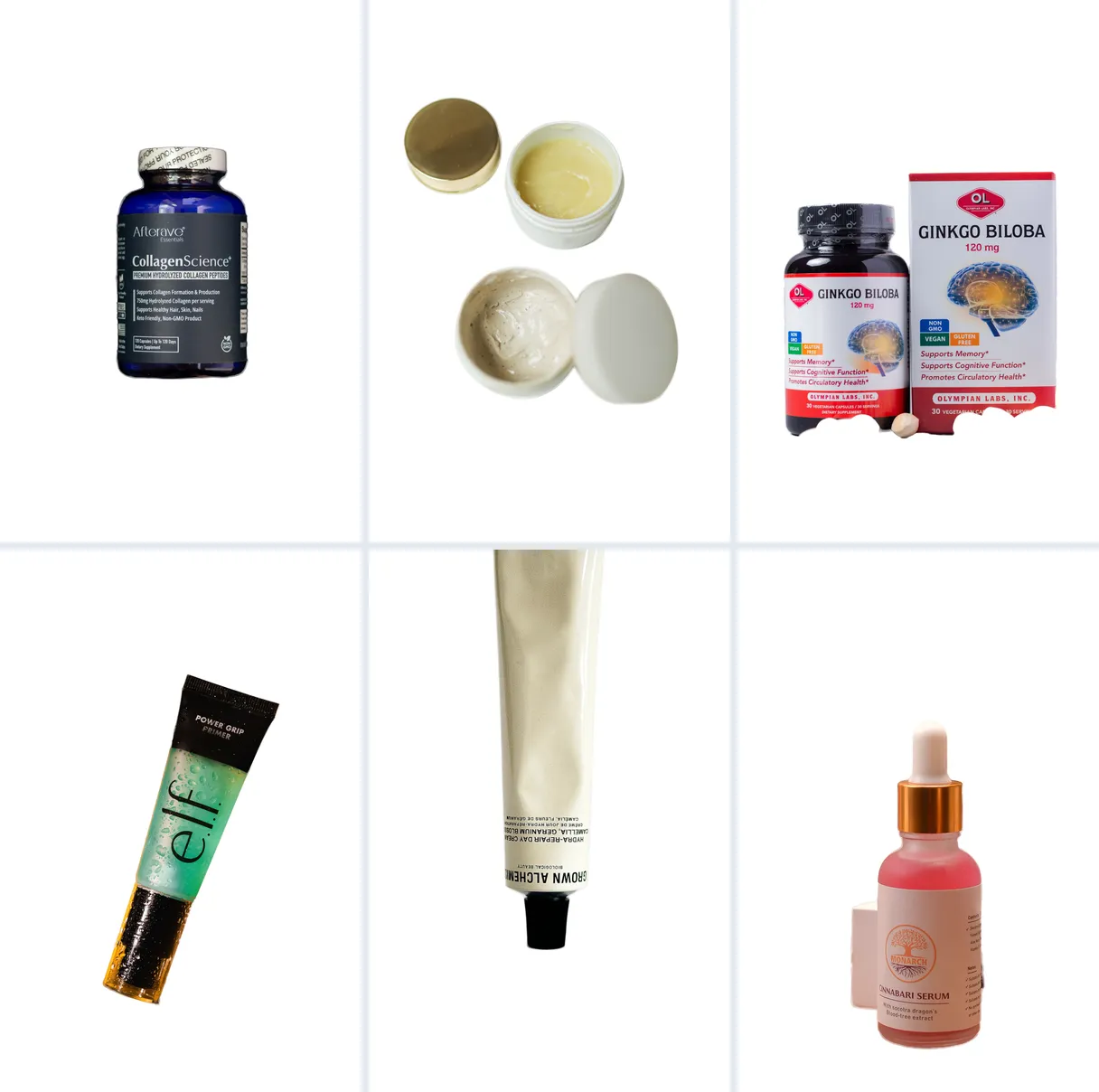
| Collagen supplement bottle on a navy backdrop | Clean | Nothing. |
| Two open cream jars and lids on white | Clean | Nothing. The pale lids on a pale table still separated. |
| Ginkgo bottle and box with loose capsules in front | Bite out of the base | Reshoot without the loose capsules, or keep the area with Magic Brush. |
| Primer tube on a yellow, shadowed backdrop | Clean | Nothing. The hard shadow was removed with the background. |
| Cream tube on white, cropped at the top | Top cut flat | Reshoot with the whole tube in frame. No tool can restore what the photo never had. |
| Serum bottle with boxes behind it | Kept a piece of the box | Shoot the bottle alone, or erase the box with Magic Brush. |
Three of six were ready to list as they came out. None of the three problems was a soft or haloed edge. Each one came from what was in the photo, which is good news: it is fixable at the shoot, before the next batch.
The numbers in the saved files
- Pure white is really pure white. All four corners of all twelve files read RGB 255, 255, 255. Between 38% (the large ginkgo box) and 88% of each frame is exactly 255, 255, 255; the remainder is the product and the thin blended edge around it.
- Framing matches the rule. Measured as the longest side of the box around every non-white pixel, the product fills 84.8% to 85.6% of the Amazon frames. Every Amazon file is exactly 2000 × 2000.
- Your framing is kept otherwise. With Keep my framing, each JPG had the same pixel size as its original in our desktop run. On a phone the tool works on a smaller copy (up to 2048 pixels on the long side), so expect a smaller file there.
Check it yourself: download the collagen bottle Amazon file (2000 × 2000 JPG) and sample any corner in an image editor.
The three that needed a fix
1. Loose capsules cost the bottle part of its base
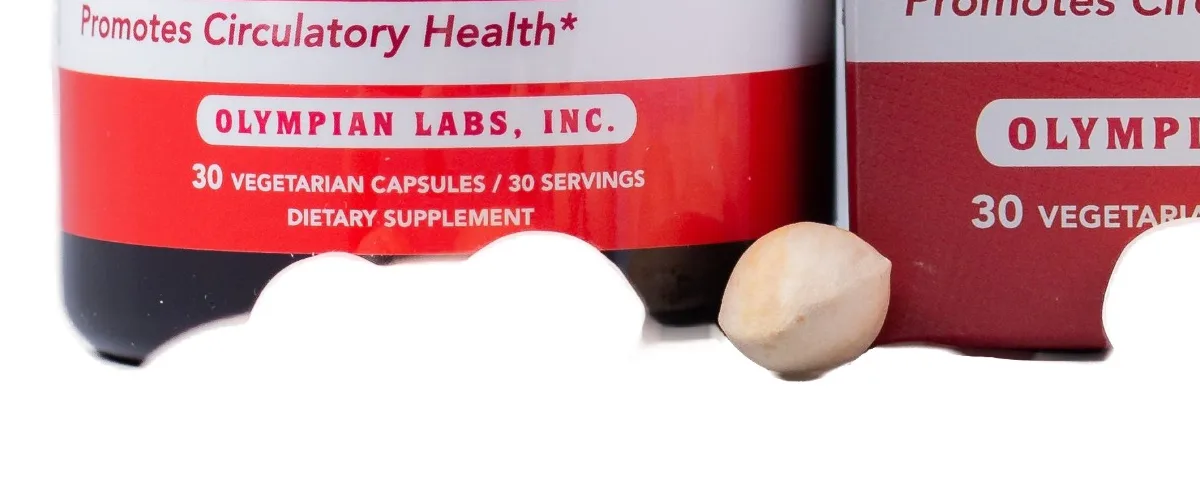
The cut-out decides what the product is. Loose items touching it at the base are ambiguous, and here they pulled the boundary in. For a MAIN image you do not want the capsules anyway, so the real fix is a reshoot with the bottle and box alone. If you must use this photo, press Fix edges in the editor under the result and paint the base back with Magic Brush.
2. A product cut off by the original photo stays cut off
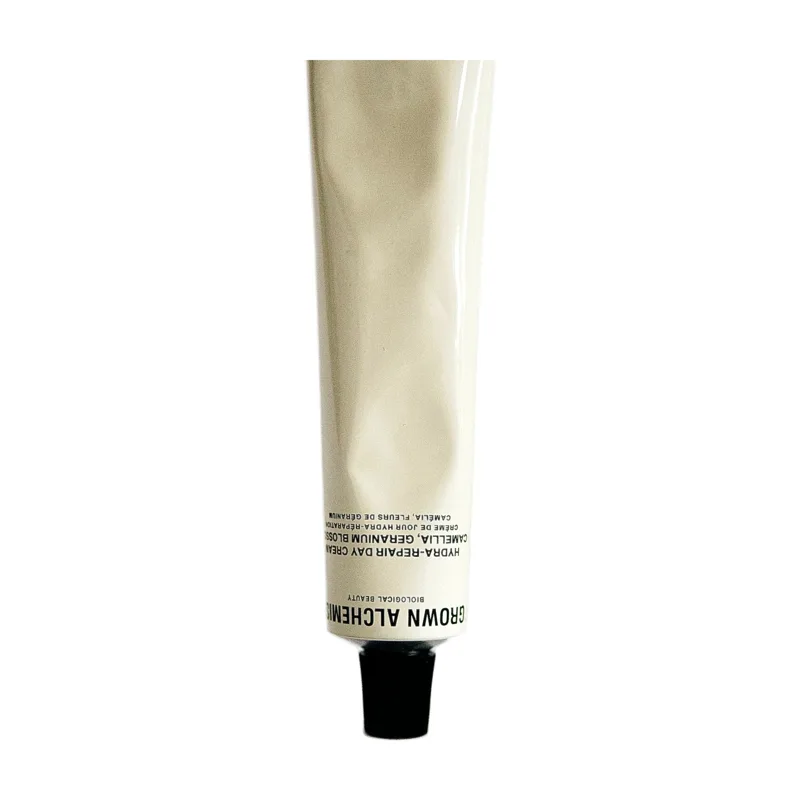
Nothing went wrong in the tool; the photo never contained the top of the tube. On a white square that becomes obvious, and a shopper sees a product that is not all there. Leave margin on every side when you shoot.
3. Other items behind the product can be kept
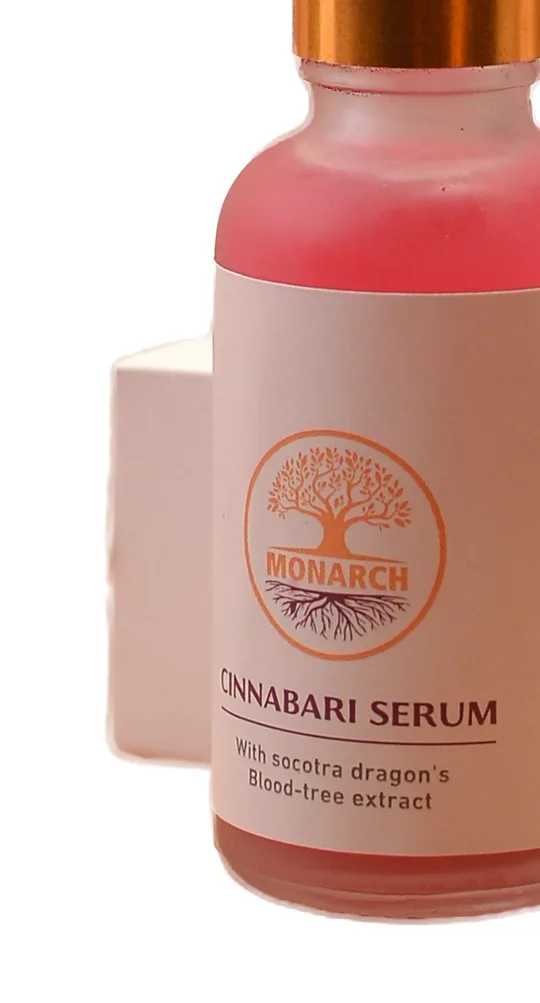
Things standing directly behind the product overlap it, so they can read as part of it. Shoot the bottle on its own for the MAIN image and keep the boxes for a secondary lifestyle shot, or erase the piece in the editor.
Before you shoot the whole range
- One product, nothing touching it. No loose pills, props or packaging in front of or behind it.
- Margin on every side. The Amazon framing can scale a product down; it cannot invent the part outside your photo.
- Any plain backdrop is fine. The navy and the yellow backdrops in this test, hard shadow included, both came out clean. Contrast between product and backdrop helps more than the backdrop being white.
- Test your hardest product first. Glass, white-on-white and thin straps are the usual hard cases. Run one, check it at 100%, then drop the rest.
Free vs Pro
| Free | Pro | |
|---|---|---|
| Photos per run | 1 to 40, as many runs as you like | Up to 200 |
| Pure #FFFFFF background | Yes | Yes |
| Amazon main-image framing | No | Yes, named {SKU}.MAIN.jpg |
| Soft product shadow | No | Yes (not on Amazon MAIN) |
| Download | Each photo, no watermark | Each photo, or one ZIP |
Pro is $29.90/year or $49.90 once for life; both include 5 GB of Cloud Space. Details are on the pricing page. For a full Amazon, Shopify, Etsy and eBay audit with export packages, use Catalog Studio; for the general how-to with an editor walkthrough, see how to change a photo background to white; and for Amazon's rules in detail, the Amazon main image requirements post.
Frequently asked questions
How do I make product photo backgrounds white for free?
Open the white background maker, drop one product photo or up to 40 at once, and download each result. The tool cuts the product out on your device, fills the background with #FFFFFF and saves a JPG. There is no watermark and no signup, and you can run as many batches of 40 as you like.
Is the background really RGB 255, 255, 255?
In our run, yes: all four corners of all twelve saved files read 255, 255, 255, and 38% to 88% of each frame was exactly pure white, depending on how much of it the product covers. The rest is the product itself and a thin blended edge where product meets background, which keeps the outline smooth.
What does the Amazon main image option do?
It is a Pro option. It makes a 2000 × 2000 JPG named {SKU}.MAIN.jpg, with the product centred and scaled so its longest side fills about 85% of the frame. In our run the measured fill was 84.8% to 85.6%. It uses the same renderer as our Amazon checker and Catalog Studio. It does not check category rules, props, packaging text or extra items.
Why did part of my product disappear?
Usually because something touching the product looked like background: loose pills, a prop, a reflection on the table. In our test, loose capsules in front of a supplement bottle cost the bottle part of its base. Shoot the product alone, or open the photo in the editor and use Magic Brush to keep the missing area.
What is free and what is Pro?
Free: one photo or a batch of up to 40 on pure white at your own framing, with a download button on every photo. Pro ($29.90/year or $49.90 once for life) runs up to 200 at once, adds Amazon main-image framing and a soft shadow, and downloads everything as one ZIP.
Try your hardest product first, then drop the rest of the batch.
Make product backgrounds white