One Headshot Background for the Whole Team: a Real Test
Team photos are taken in different rooms, on different days, by different phones. We put three very different headshots on the same backdrops to see how close a free browser tool gets to a matched set.
Quick answer: drop the headshots into the headshot background tool, choose white, light grey, a brand colour or a soft gradient, keep the Head and shoulders crop, and download. Every photo gets the same backdrop and a square crop of at least 400 × 400, LinkedIn's minimum. Use a light backdrop if your photos were shot against a bright sky or wall; on navy, a pale fringe showed in the hair.
What we ran
Three portraits from Pexels that look nothing alike: a woman in a fur-trimmed hood against a pale wall, a waist-up photo of a woman in a leopard coat outdoors, and two women cheek to cheek against a bright evening sky. That covers the hard cases for a headshot tool: fur, long loose hair, and two people in one frame.
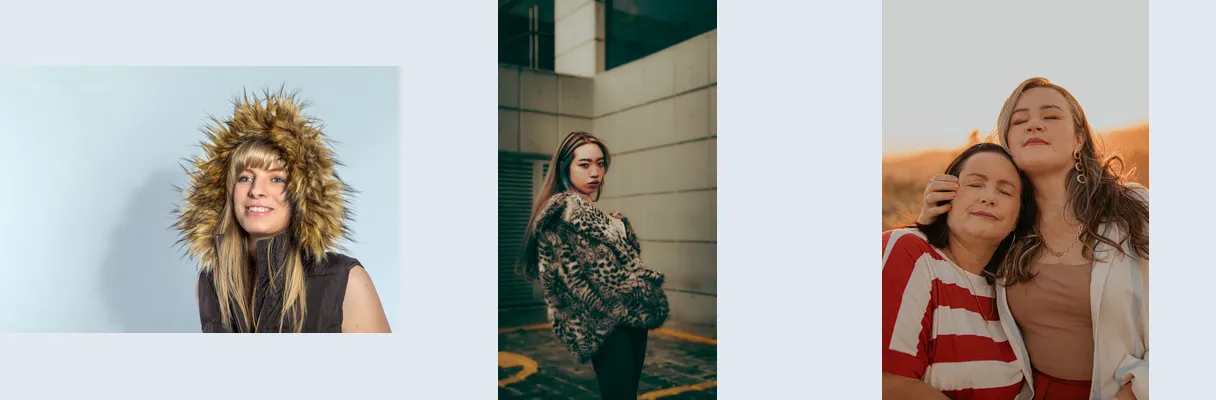
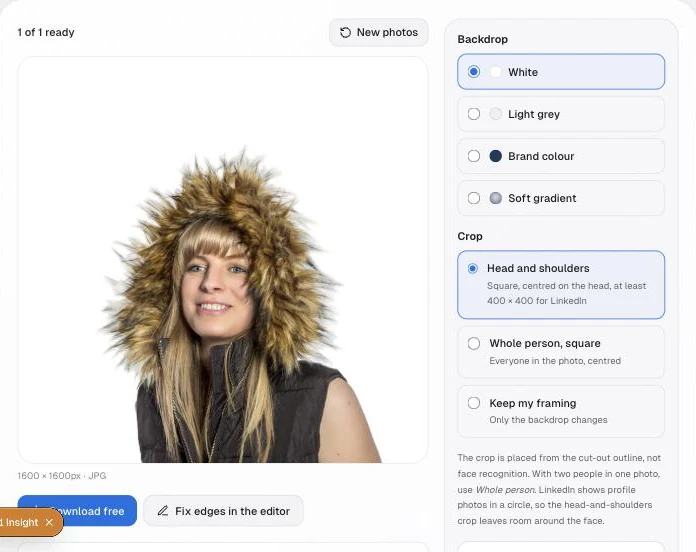
- We dropped all three into the headshot background tool in Chrome on a Mac, default Fast quality, Head and shoulders crop.
- We switched the backdrop through white, light grey, soft gradient and a navy brand colour (#1F3A5F), downloading every version. Changing the backdrop does not re-run the cut-out; only the final picture is redrawn.
- We then switched to Best quality, which re-cuts every photo, and compared the hair on navy.
The same three people on four backdrops
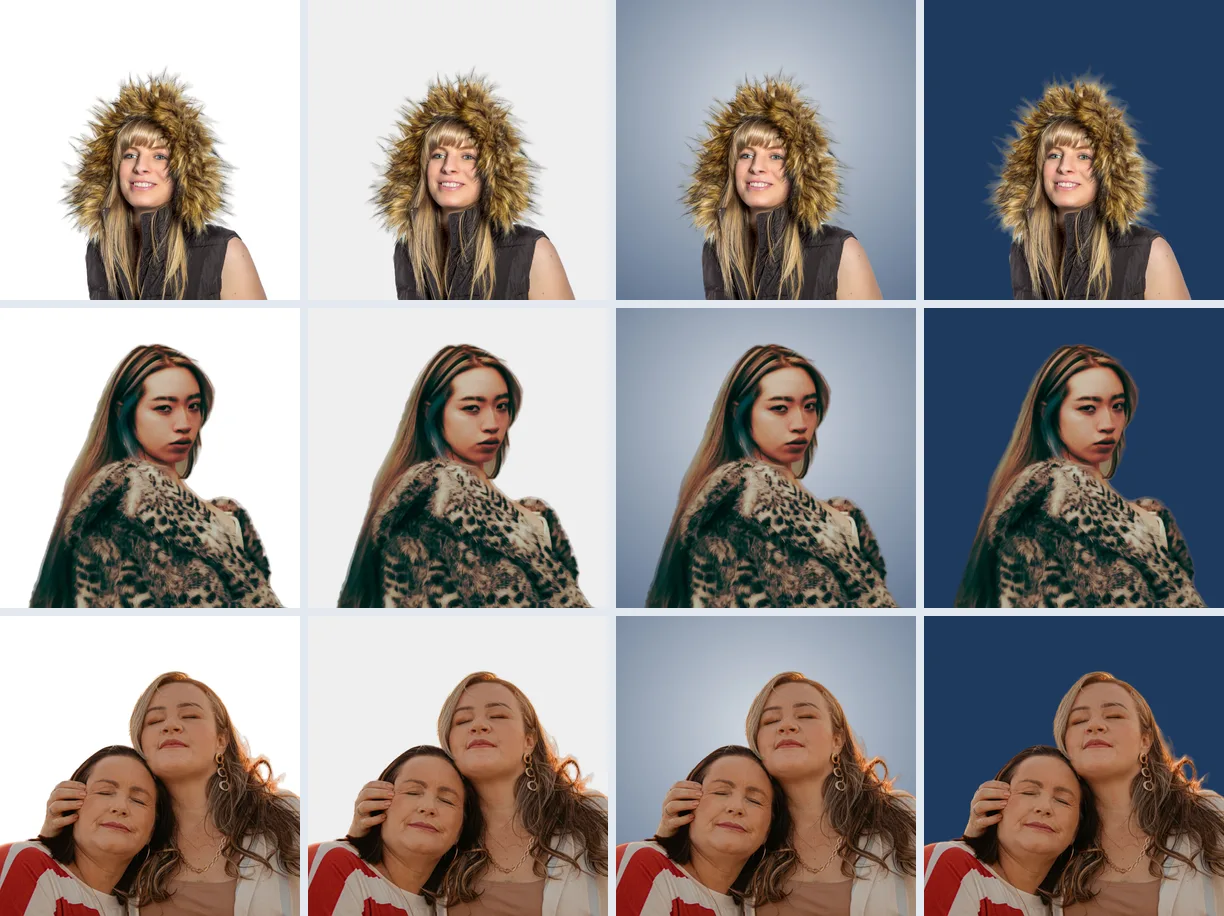
- The set reads as a set. Three photos shot in different light now share a backdrop and a crop, which is most of what makes a team page look deliberate.
- Sizes: 1600 × 1600 for the hooded portrait and the pair, about 1570 × 1570 for the waist-up photo, whose head-and-shoulders area in the original was narrower than 1600 pixels, so it was saved at its own size rather than enlarged.
- Backdrop values hold: in the saved JPGs white samples at 255, 255, 255 and grey at 238, 238, 238; the navy chosen as #1F3A5F (31, 58, 95) samples at 30, 58, 95, within 1 of the chosen value after JPEG compression.
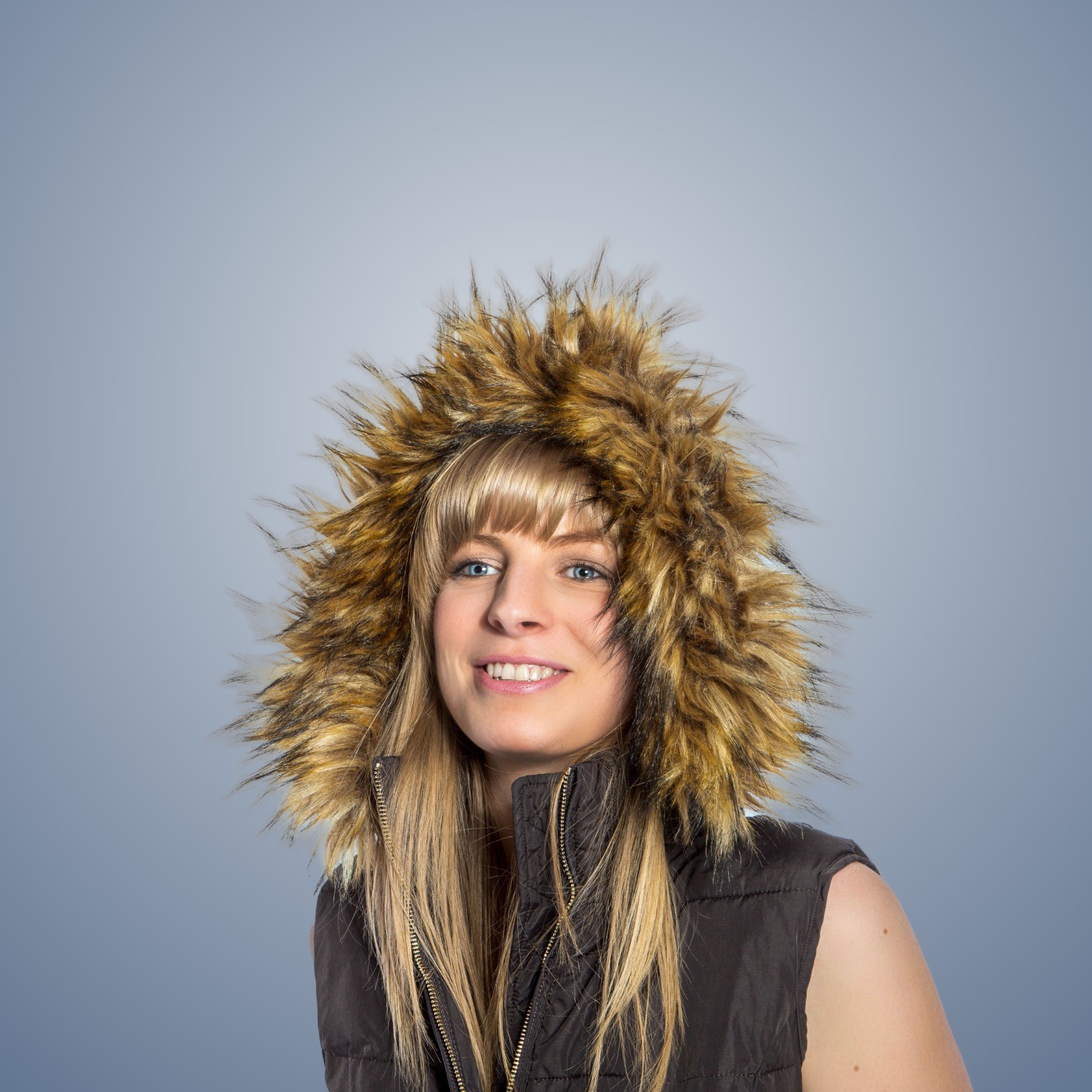
- The gradient is the most forgiving. Its lighter centre sits behind the head, so small edge flaws blend in. You can download the full-size gradient version to inspect it.
Where it fell short
A pale fringe in the hair on a dark backdrop
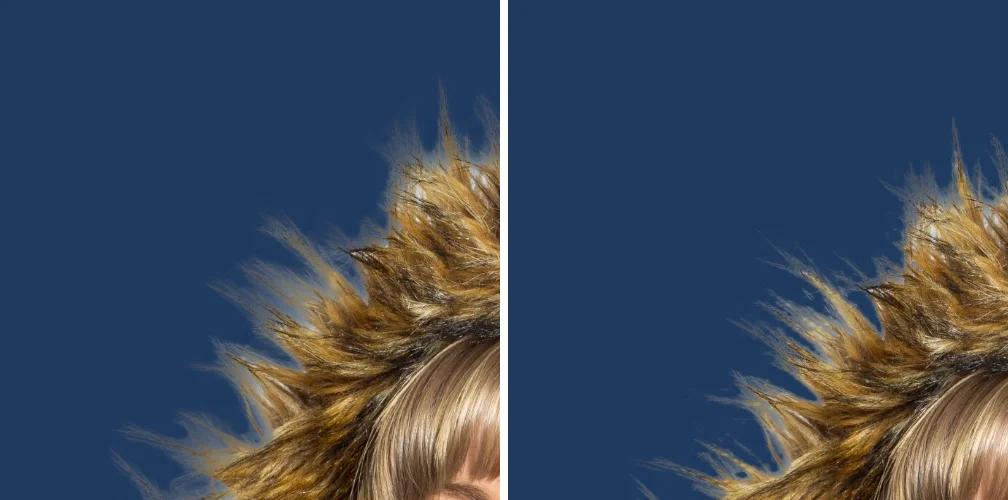
Fine hair and fur are partly transparent, so their edge pixels hold a little of whatever was behind them. All three originals had a bright background, and on white or grey that is invisible. On navy it shows as a pale outline, most clearly on the long hair of the waist-up photo. The Best setting helped on the fur but did not remove it. The practical fix is the backdrop: if the originals were shot against something bright, choose white, light grey or the gradient.
Two people in one photo
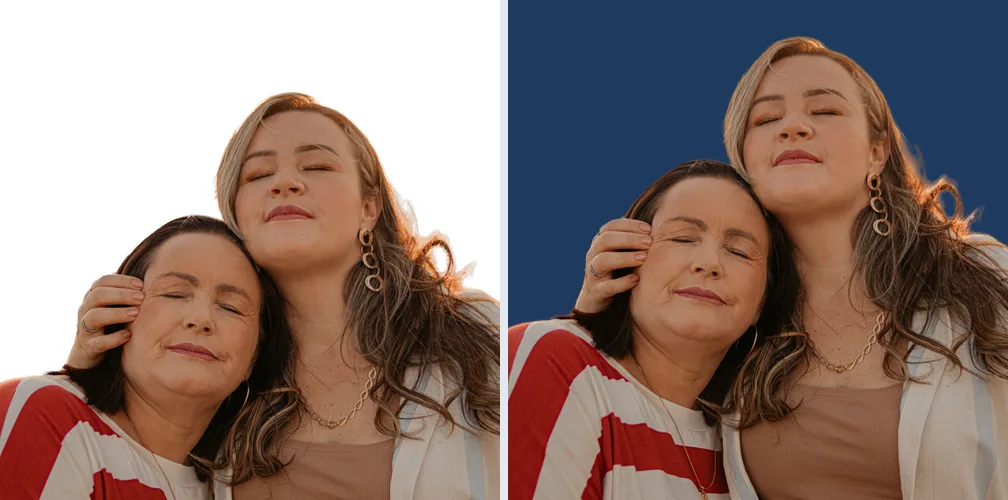
The crop is placed from the outline of the cut-out, not by recognising faces, so two heads side by side read as one wide head. It still kept both faces, but trimmed the hair on the right. With more than one person in a photo, use Whole person; for a directory, use one photo per person.
Choosing one backdrop for a team
- White or light grey for directories, intranets and anywhere the photo sits on a white page.
- Soft gradient for an About page or speaker kit where you want a studio look without a studio.
- Brand colour for slides and social graphics, but only if the photos were shot against something darker than a bright sky, or you will see the fringe described above.
- One backdrop, one crop, for everyone. Mixing them is what makes a team page look assembled.
Free vs Pro
Every backdrop, crop and quality setting is free, for one headshot or up to 40 per run, with a download button on each photo and no watermark. Pro ($29.90/year or $49.90 once for life) is for larger teams: up to 200 photos per run and one ZIP with the original file names. Details are on the pricing page. If you are a photographer delivering cut-outs to clients, see background removal for headshots; for LinkedIn specifically, the LinkedIn photo guide.
Frequently asked questions
How do I change the background of a headshot for free?
Drop the photo into the headshot background tool, pick white, light grey, a brand colour or a soft gradient, and download the JPG. It runs in your browser with no signup and no watermark. One photo or up to 40 at once is free.
What is the best background colour for a LinkedIn photo?
There is no single rule. White and light grey are safe and match most company directories; a soft gradient looks more like a studio portrait. In our test, light backdrops also hid the faint edge fringe that a dark navy backdrop showed. Whatever you pick, use the same one for the whole team.
What size should a LinkedIn profile photo be?
LinkedIn’s help centre gives a range of 400 × 400 to 7680 × 4320 pixels. The head-and-shoulders crop exports a square of at least 400 and up to 1600 pixels; our three test photos came out at 1600, about 1570 and 1600.
Can I make every headshot on a team page match?
Yes: drop the whole team and every photo gets the same backdrop and crop. Free runs take up to 40 photos, each with its own download button. Pro ($29.90/year or $49.90 once for life) runs up to 200 at once and downloads them as one ZIP.
Why is there a light outline around the hair on a dark backdrop?
Fine hair is partly see-through, so its edge pixels carry some of the original background’s colour. Shot against a bright sky or wall, that shows as a pale fringe on navy or black. Switch to Best quality where your device offers it, or use a lighter backdrop.
Try one headshot first, then drop the rest of the team.
Change a headshot background