Bulk background removal: from a folder to checked PNGs
Select up to 40 images for a free run, inspect the result for every file, then save each PNG. A finished progress bar tells you the run ended; it does not tell you every cutout is usable or every download reached your folder.
Quick answer: Open the free bulk background remover, choose several supported images, and let the first selection start processing. Keep the tab open. Use the per-file status and preview to separate good results from errors. Individual PNG downloads are free; packaging a batch into one ZIP is a Pro feature.
1. Prepare a small batch before the whole folder
Start with three representative files: one easy subject, one with fine edges, and one you expect to be difficult. Keep untouched originals in a source folder and save cutouts in a separate results folder. Descriptive names make matching them easier. Avoid two different inputs with the same filename stem, such as item.jpg and item.png, because their suggested PNG download names can collide.
The file picker accepts JPEG, PNG, WebP, and GIF inputs. Selecting a file does not guarantee it can be decoded or that the model will find the intended subject. Read any intake error before counting a file as part of the run. For this walkthrough, use still images and keep the originals.
2. Select the files and watch their individual states
The first accepted selection starts processing automatically. If you cancel a run or add more files later, use the visible Start Processing control when offered. A model download can happen before the first result. Keep the browser tab open and avoid clearing its data while the run is active.
Backgroundless chooses a processing path supported by your device. GPU availability, browser memory, image dimensions, and the quality setting affect the run. There is no fixed worker count or universal completion time you should plan around. If a large batch struggles, save the completed results and try a smaller group.
| Per-file state | What to do |
|---|---|
| Pending / processing | Wait for this file. Do not count it as a usable result yet. |
| Completed / Done | Inspect the cutout, then download and reopen it. |
| Error | Read the reason. Use Retry failed items when available, or correct the source and select it again. |
A partially successful batch can contain useful files alongside failures. Retry only the unresolved files when possible. Repeating the entire folder makes it harder to distinguish new downloads from earlier versions. If a file repeatedly fails, try it separately; a decoding error and a missing-subject result call for different next steps.
3. Review the cutout, not just the green status
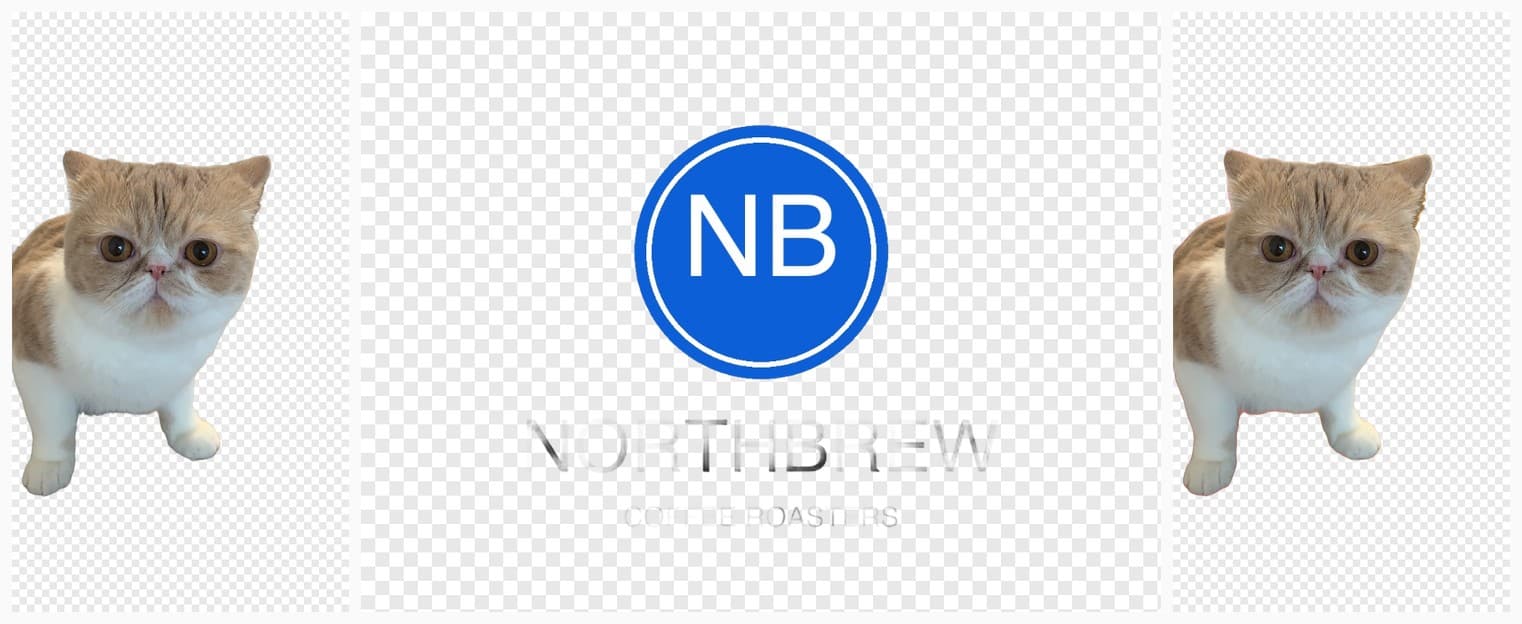
In the existing demonstration above, both cat subjects remain recognizable, while the pale lettering beneath the logo is hard to read. A thumbnail can hide that problem. Check whiskers, hair, product handles, holes, thin lettering, and shadows at a useful zoom level. Review every deliverable before using it; a sample check alone cannot certify the rest of a batch.
For a logo, preserve every letter you need. For portraits, inspect hair and shoulders. For products, make sure small accessories and the actual outline survived. If an edge needs work, use the Magic Brush refinement guide for a separate single-image edit. Do not assume a bulk completion indicator is a quality rating.
A reproducible three-file download check
This exercise uses three existing Backgroundless demo photos: cosmetics, portrait, and daisies. Save them locally and select those three files together. They cover a solid product outline, hair, and small gaps between petals. This is a reproducible checklist, not a claim that a new model test produced perfect results.
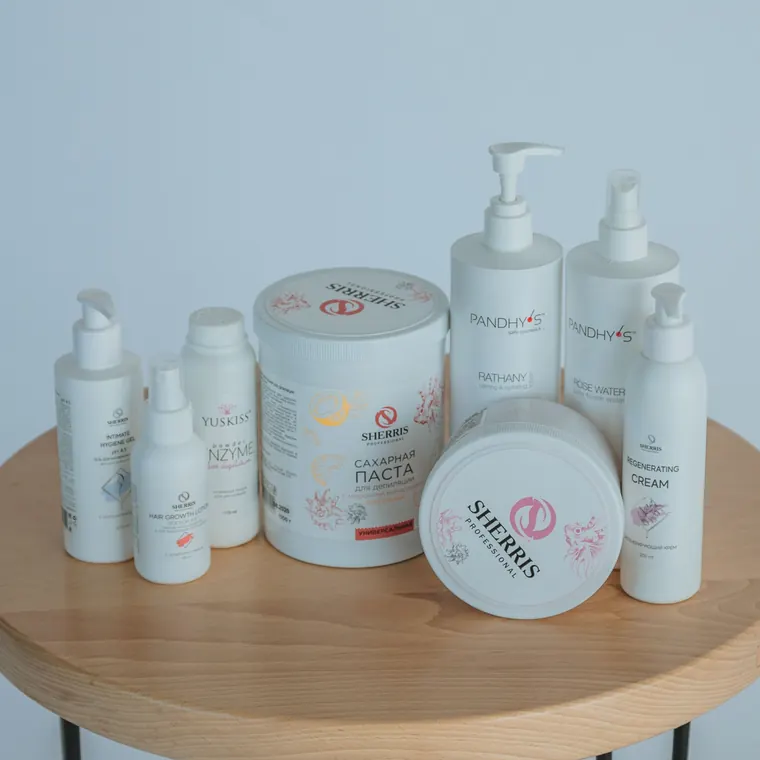


- Put the three originals in a folder named source. Open the download-check CSV to track them.
- Choose the three files in the bulk tool. Record any rejected input or error instead of silently replacing it.
- For each completed result, inspect the specific detail in the worksheet. Record pass, needs refinement, or failed.
- Choose PNG and use the individual download control. Save into a separate results folder and reopen the actual saved file.
- Match the saved filename to its source. Check transparency over both a light and dark surface and record whether the file opens correctly.
The worksheet starts with blank result fields. Its suggested filenames follow the shipped download naming rule, not observed downloads from your device. Browsers may append a suffix when a name already exists. The accompanying input manifest records file sizes, dimensions, and SHA-256 hashes so another reader can identify the same source assets.
Worked reconciliation: three selected files with two completed results and one error means two candidates for download and one unresolved input. If only one PNG appears in the results folder, the second completed result still needs saving. Keep both unresolved steps on the checklist. This arithmetic example is illustrative; it is not a measured success rate.
4. Download, reopen, and count the files
Free downloads save individual files. A control labelled Download All is not the same thing as a ZIP: the free path starts separate downloads. Browser download handling can interrupt or limit multiple saves. If that happens, use each completed file’s own download button and verify the files in your download folder. A button click alone is not confirmation that a file was saved.
Choose PNG when you need transparency. A checkerboard inside a screenshot or JPEG is just visible pixels. The transparent-background guide explains how to check the actual file. The MDN image-format guide documents which formats support transparency. If you need a solid white image instead, follow the white-background walkthrough and check the final exported background.
Keep three counts separate: accepted inputs, usable results, and files saved successfully. They should agree before you clear a fully successful batch. Otherwise, record the exception and keep the source. Downloading does not itself erase the working image from the open page; the browser may retain it while you continue editing.
When a seller workflow needs more than free PNGs
A folder of transparent cutouts is not automatically a marketplace-ready catalog. You may also need consistent dimensions, background color, margins, filenames, and a review of the destination’s current image rules. Check one finished listing image before applying a workflow to the entire catalog.
Pro batch export adds ZIP packaging and export options. Catalog Studio is a separate seller workflow with job review and marketplace packages. Read the current free and Pro offer before choosing paid features. This guide does not promise marketplace acceptance or quote a temporary promotion as a permanent price.
For print-on-demand, treat the cutout as an intermediate asset. Verify the printer’s own size, resolution, transparency, and artwork requirements before submitting it. A successful background-removal run does not establish print readiness.
Privacy and recovery questions
Are the selected photos processed locally?
Background removal runs in your browser. The site still connects to download its processing model and uses other services described in the privacy policy. Local photo processing does not mean the entire website makes no network requests. Keep your own original files and do not rely on an open tab as a backup.
Can I close the tab and come back to a free batch?
Save and verify the results before closing or reloading. This free-batch walkthrough does not promise persistent recovery across browser sessions. Catalog job checkpointing belongs to a separate workflow and should not be assumed for every editor screen.
Does retrying guarantee a better cutout?
No. Retry can recover a transient processing problem, but an unsuitable source may still need a new photo or careful refinement. Compare the subject with the original instead of accepting an output simply because the error disappeared.
Try the three-file check
Start small, inspect each cutout, and verify the saved PNGs before processing the rest of your folder.
Start free bulk removal